HubSpot Integration
Create matched audiences using HubSpot contact lists to enhance your targeting capabilities in IQM.
Prerequisites
Before using the HubSpot integration, you must have:
- An active IQM account
- A HubSpot account with contact lists
Install and Authorize HubSpot
Step 1: Install the HubSpot App
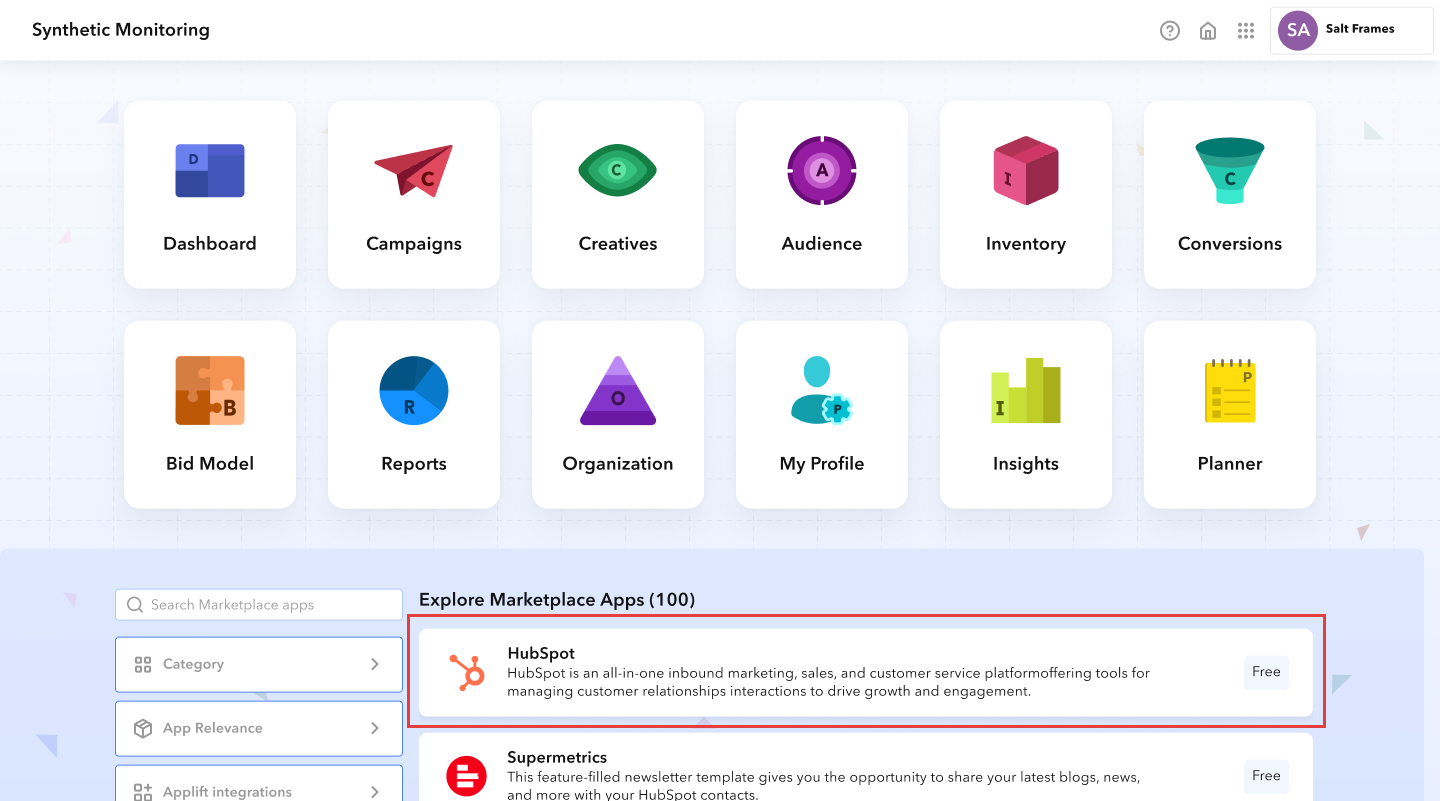
- Visit Marketplace Apps on the IQM Platform
- Select the HubSpot app
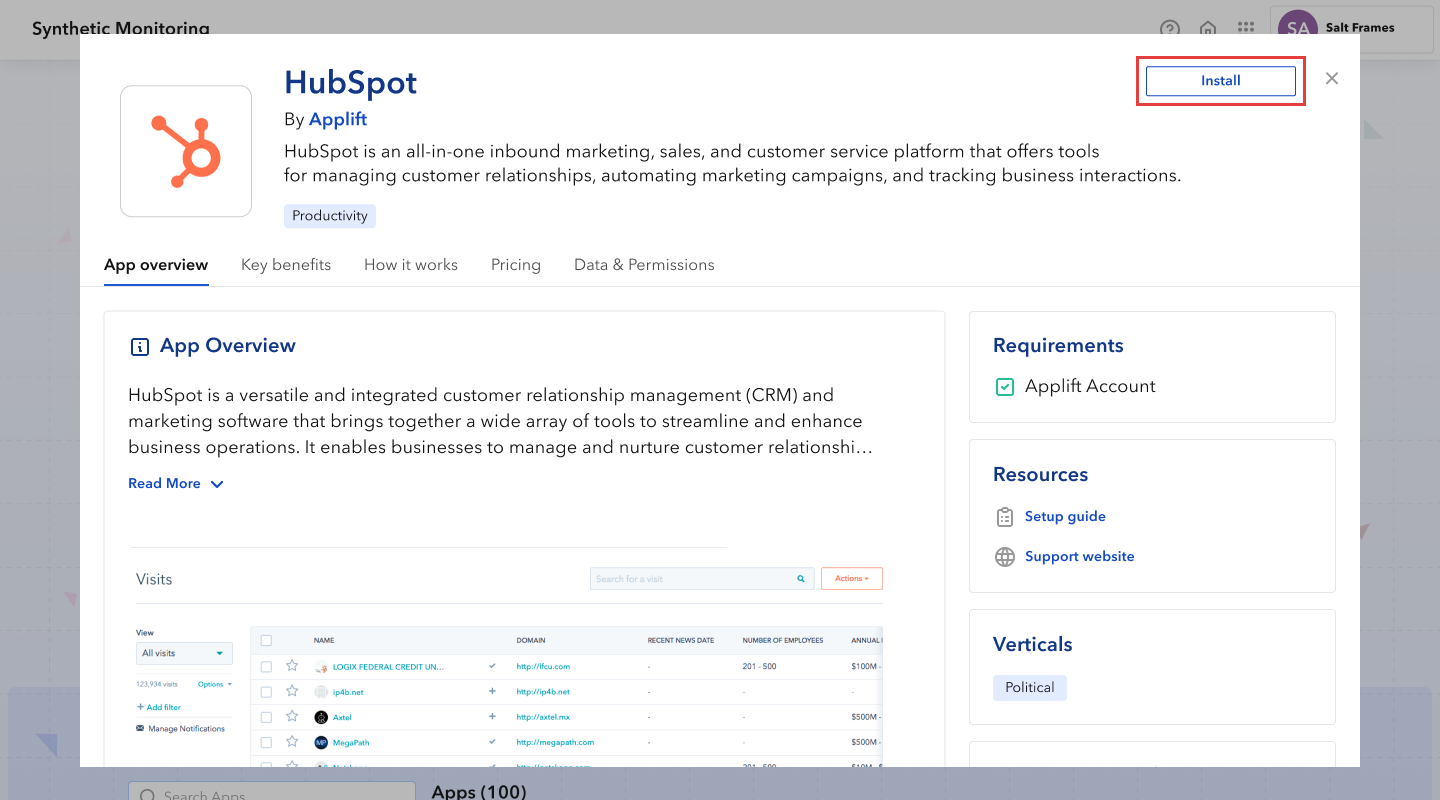
- Open the HubSpot app and click the Install button
Step 2: Access the App
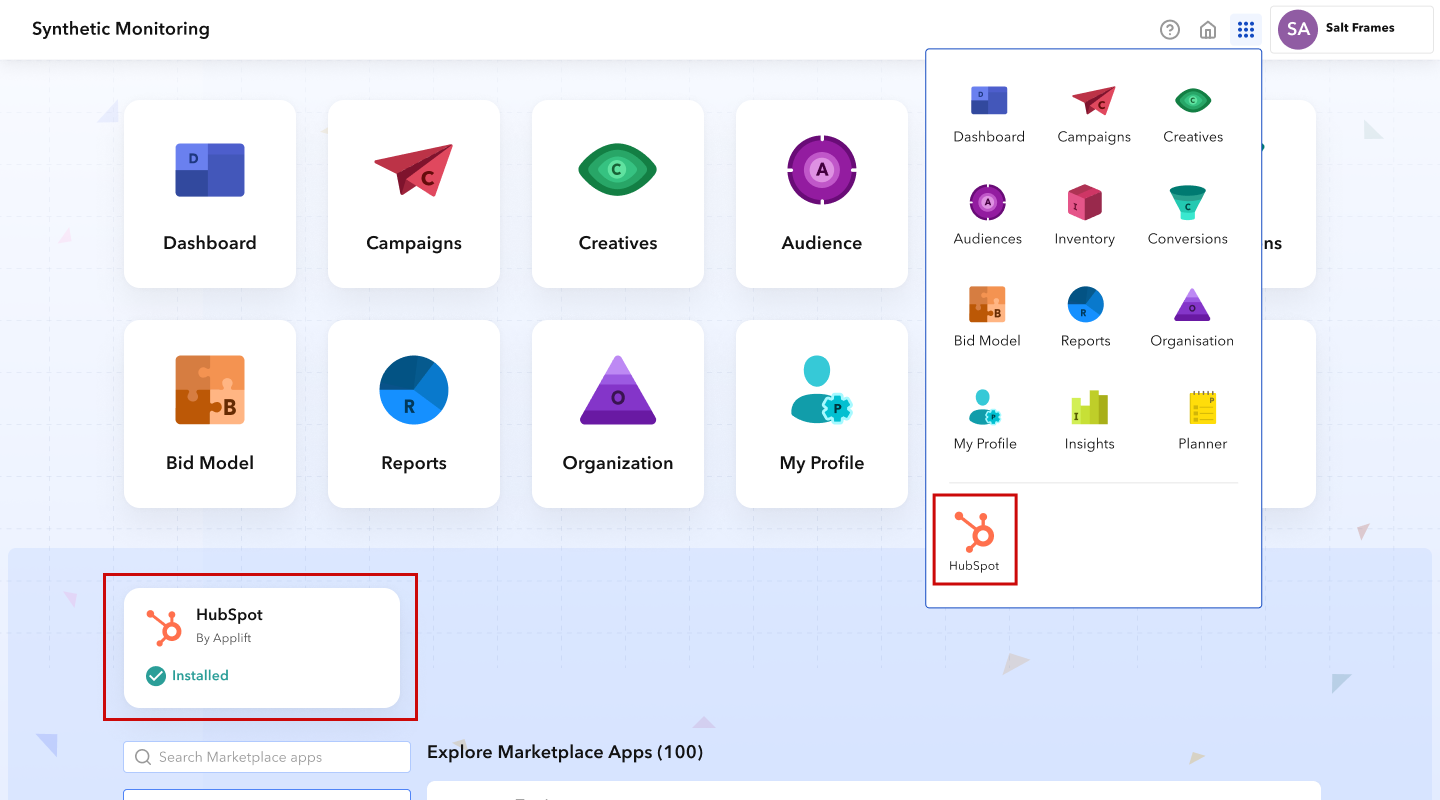
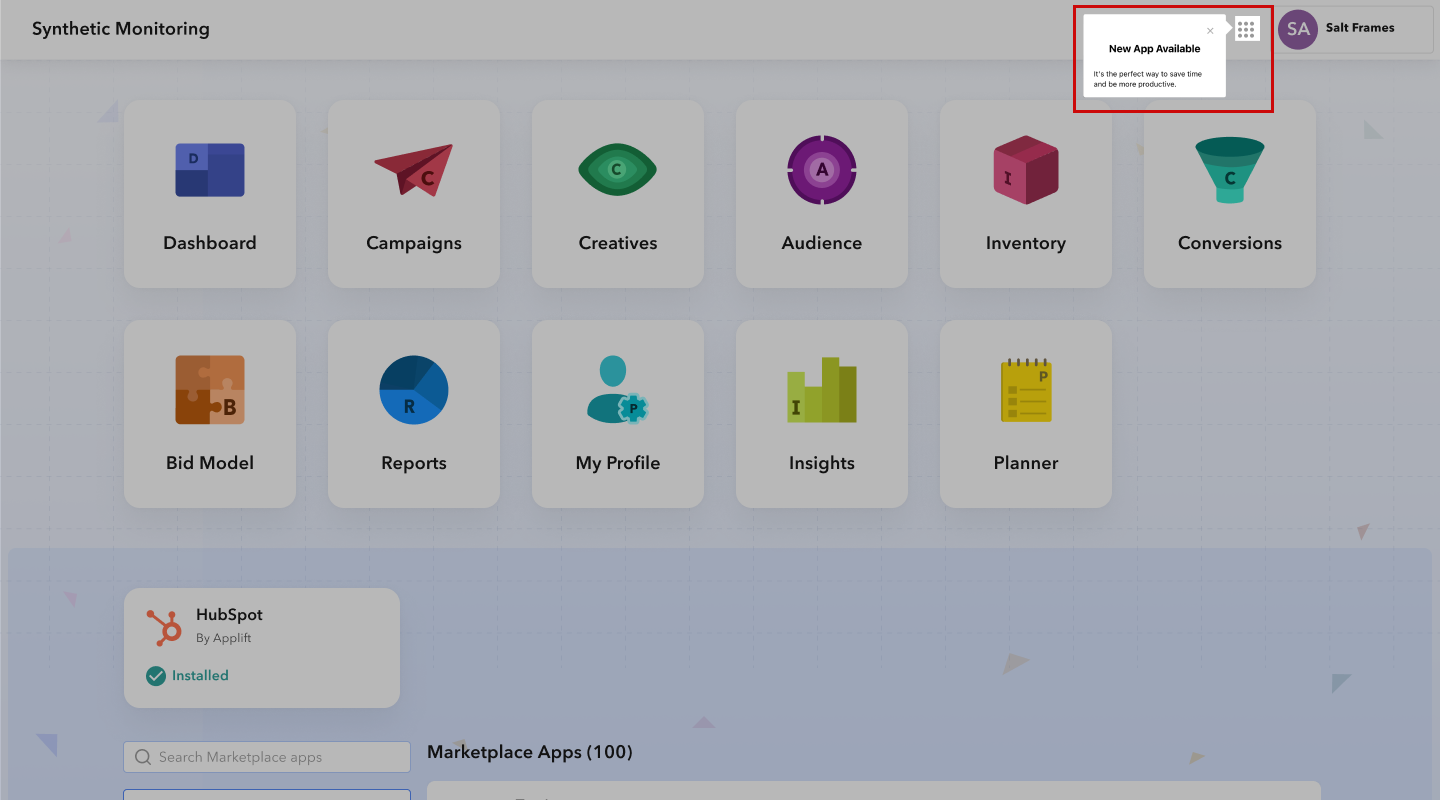
Once the app is installed, access it from:
- The home page of available apps, OR
- The 9 dots icon in the top right of the header (HubSpot will appear at the bottom of the list)
Step 3: Authorize IQM Access
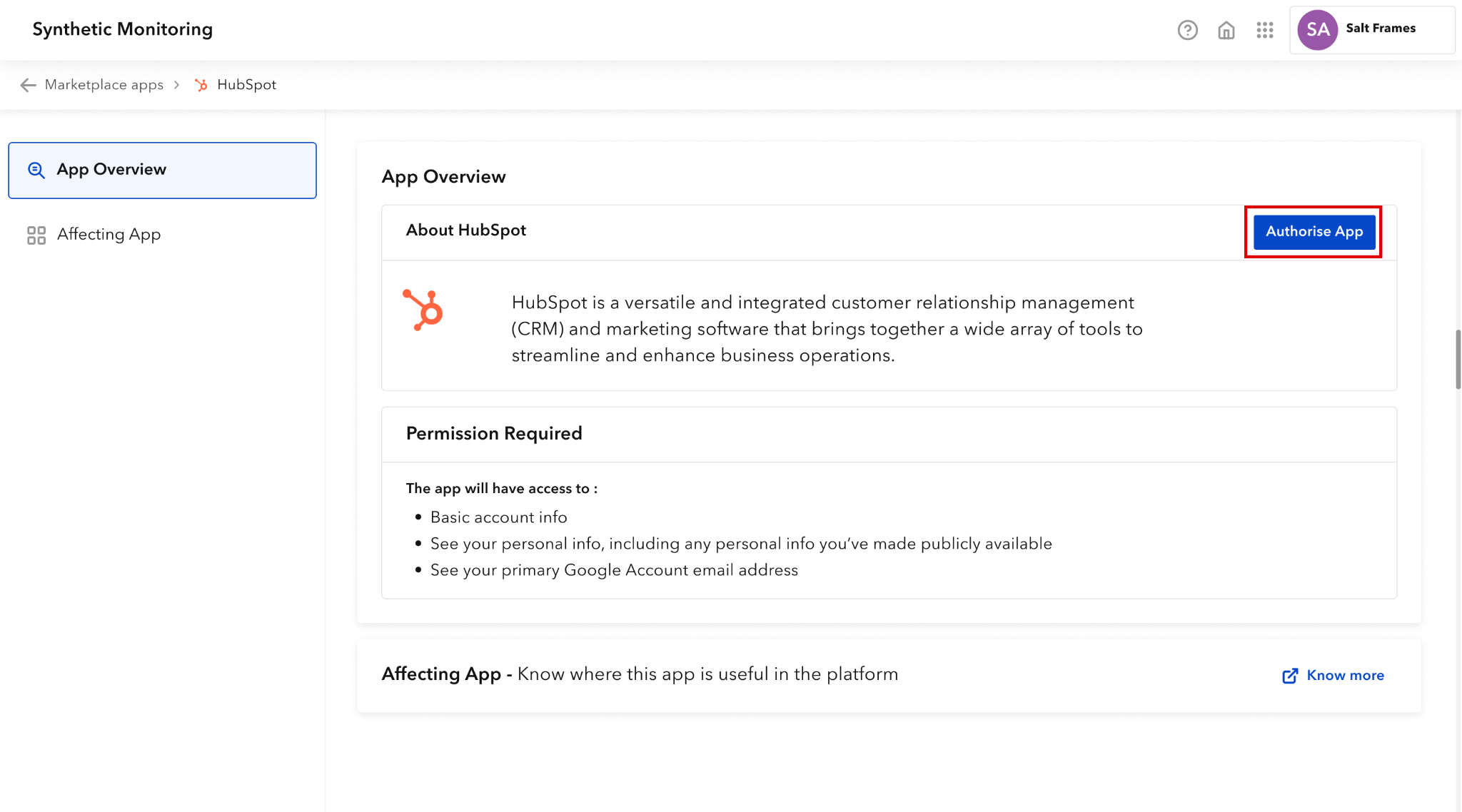
- Click the Authorize App button in the app overview page
- Select your HubSpot account
- Authorize IQM access with the HubSpot account
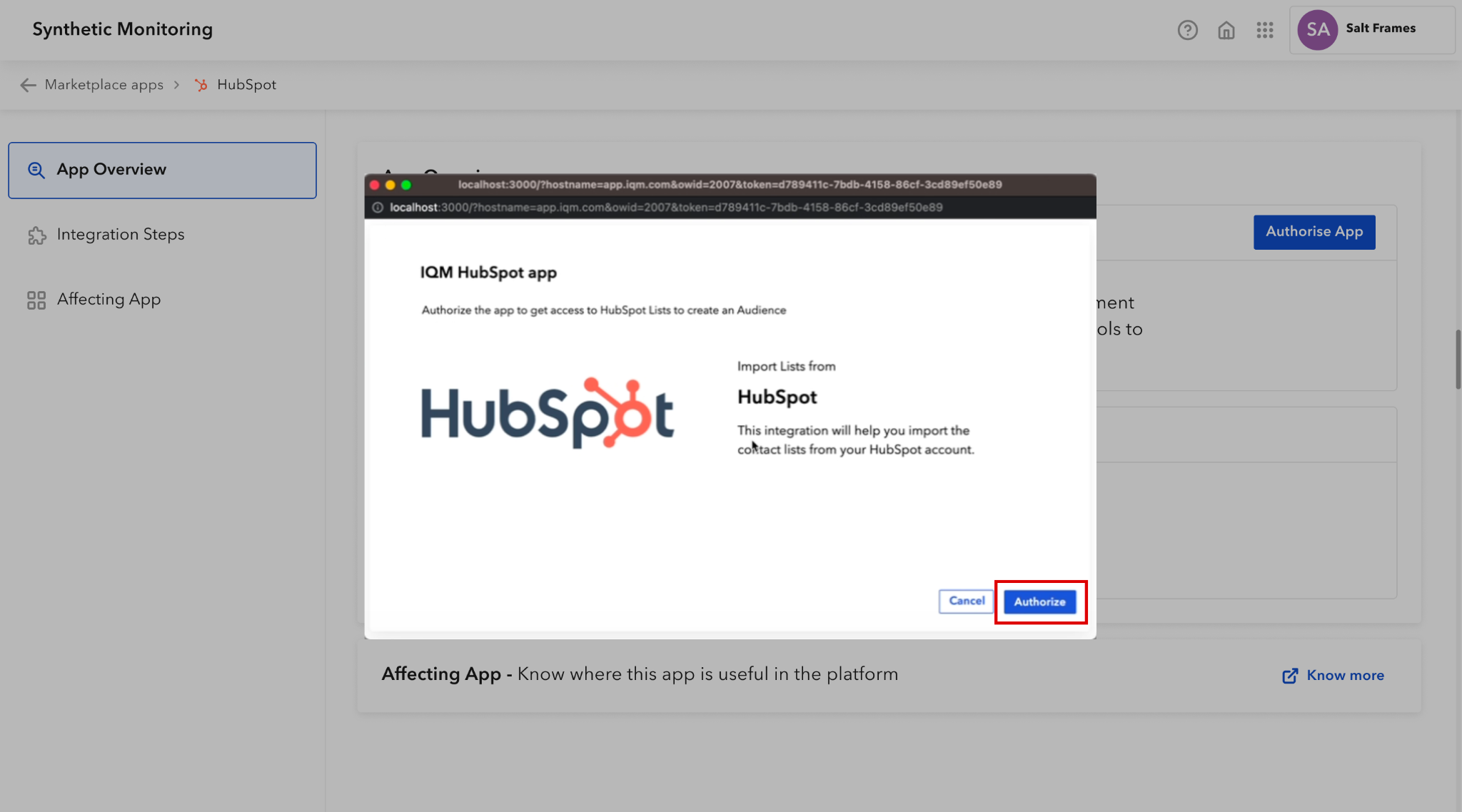
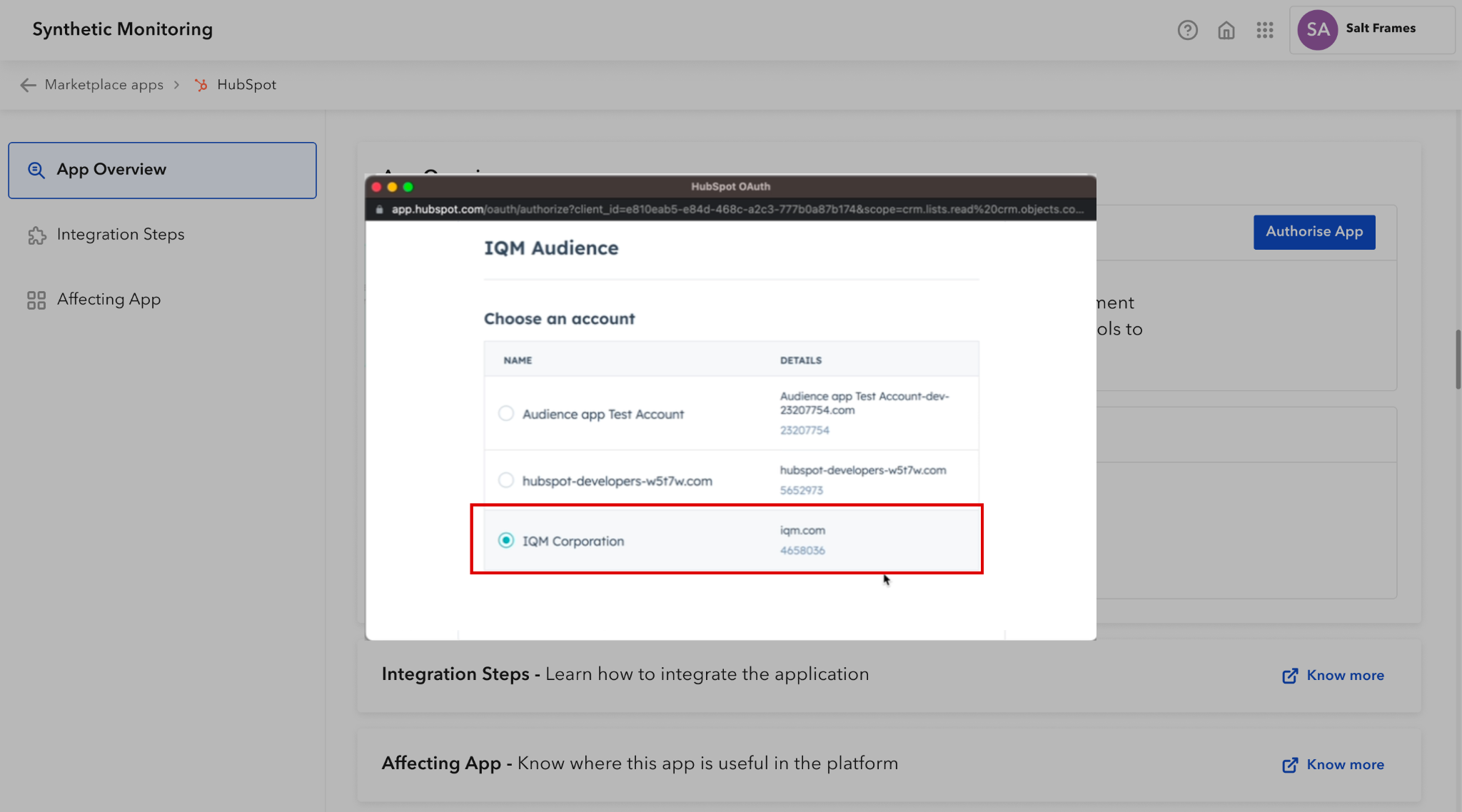
If your HubSpot account is not logged in, go to HubSpot and log in first, then return to authorize.
Create a Matched Audience Using HubSpot Contact List
Step 1: Open the Audience App
Go to the Audience app from the top right corner of the platform.
Step 2: Create Matched Audience
- Click the Create Matched Audience button
- Select Import from HubSpot option
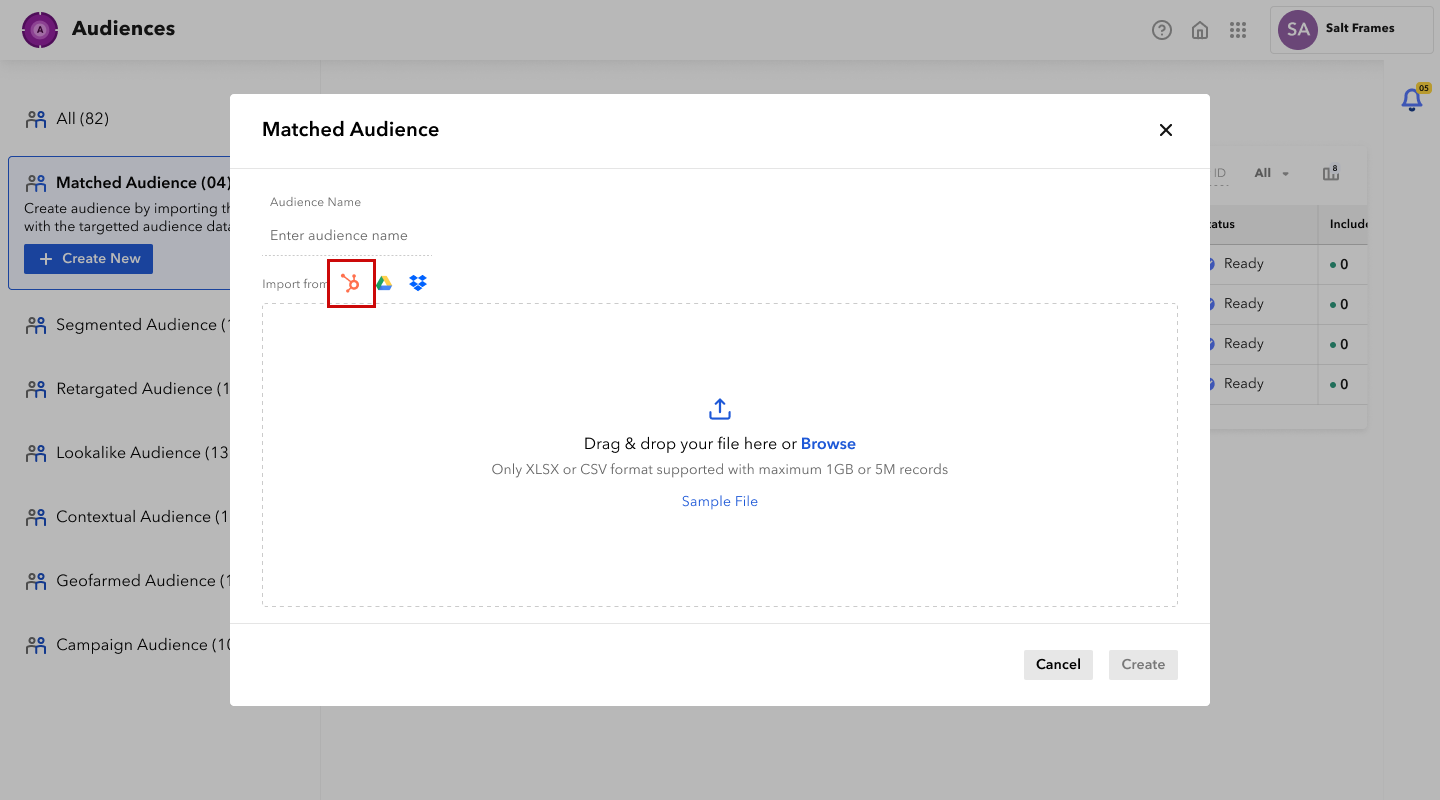
Step 3: Select Contact List
- Select the hubspot-contact-file name from the contact lists dropdown
- Download the data
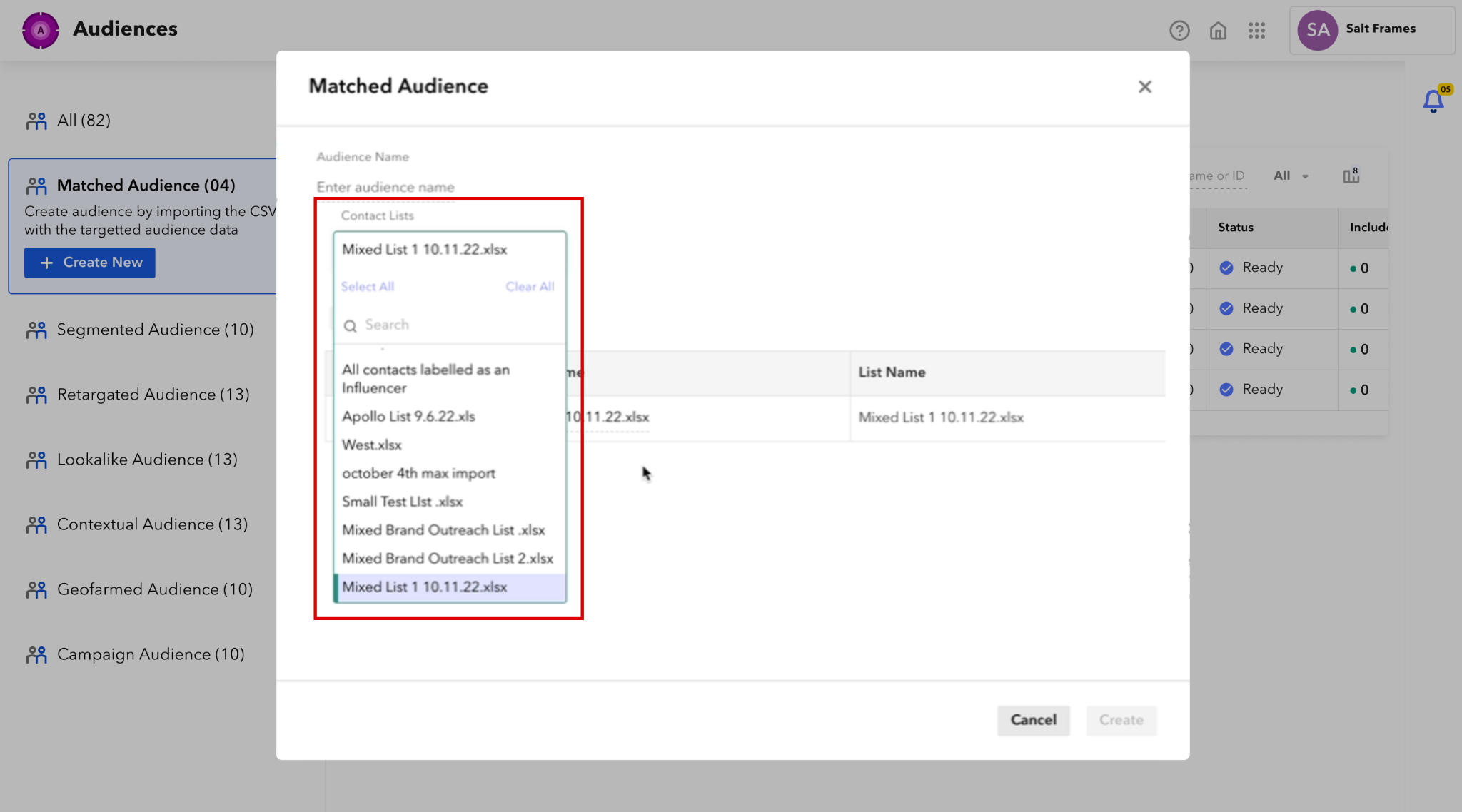
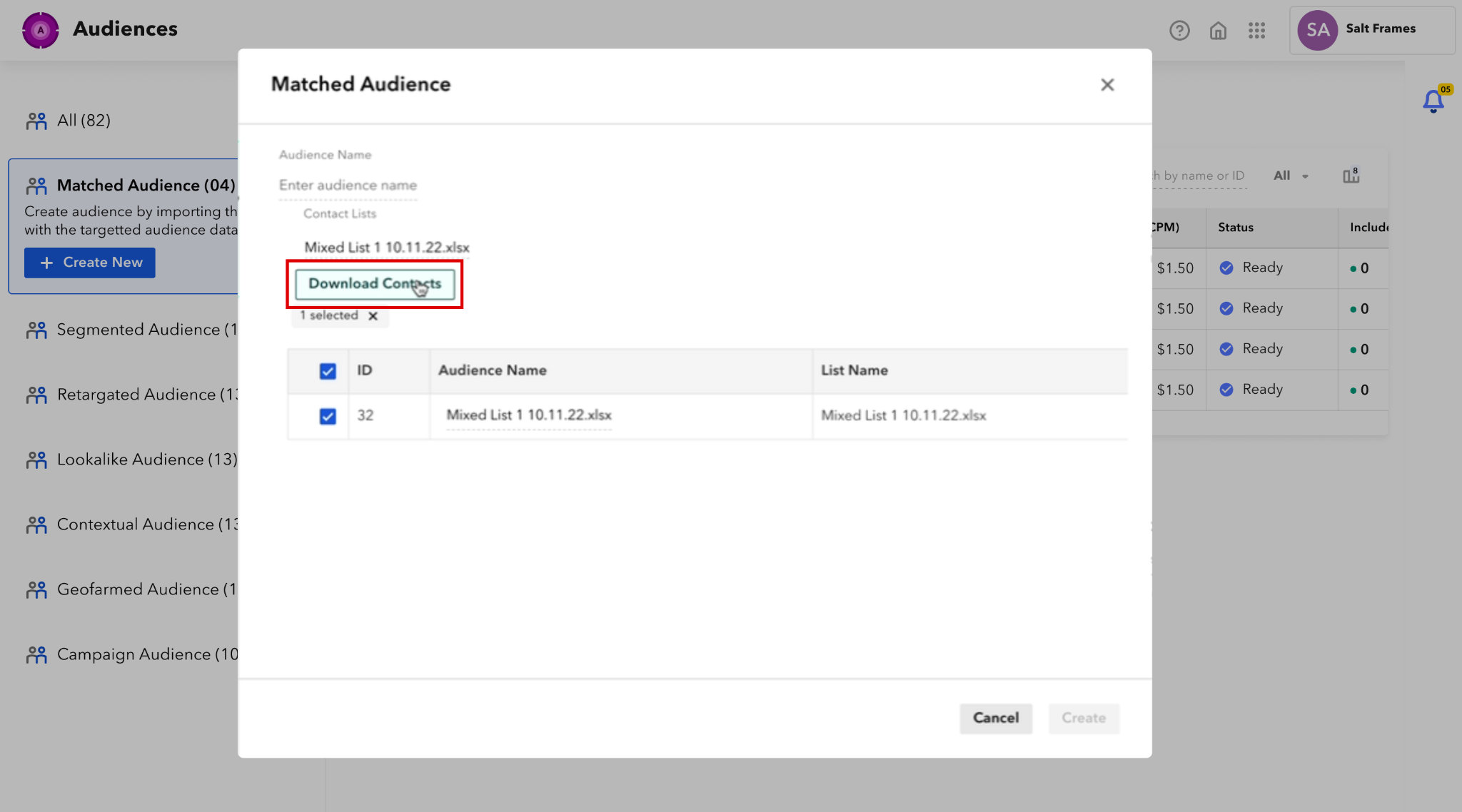
Step 4: Map Columns
- Match the columns with the uploaded file column names
- Click Create to create the matched audience from the HubSpot contact list
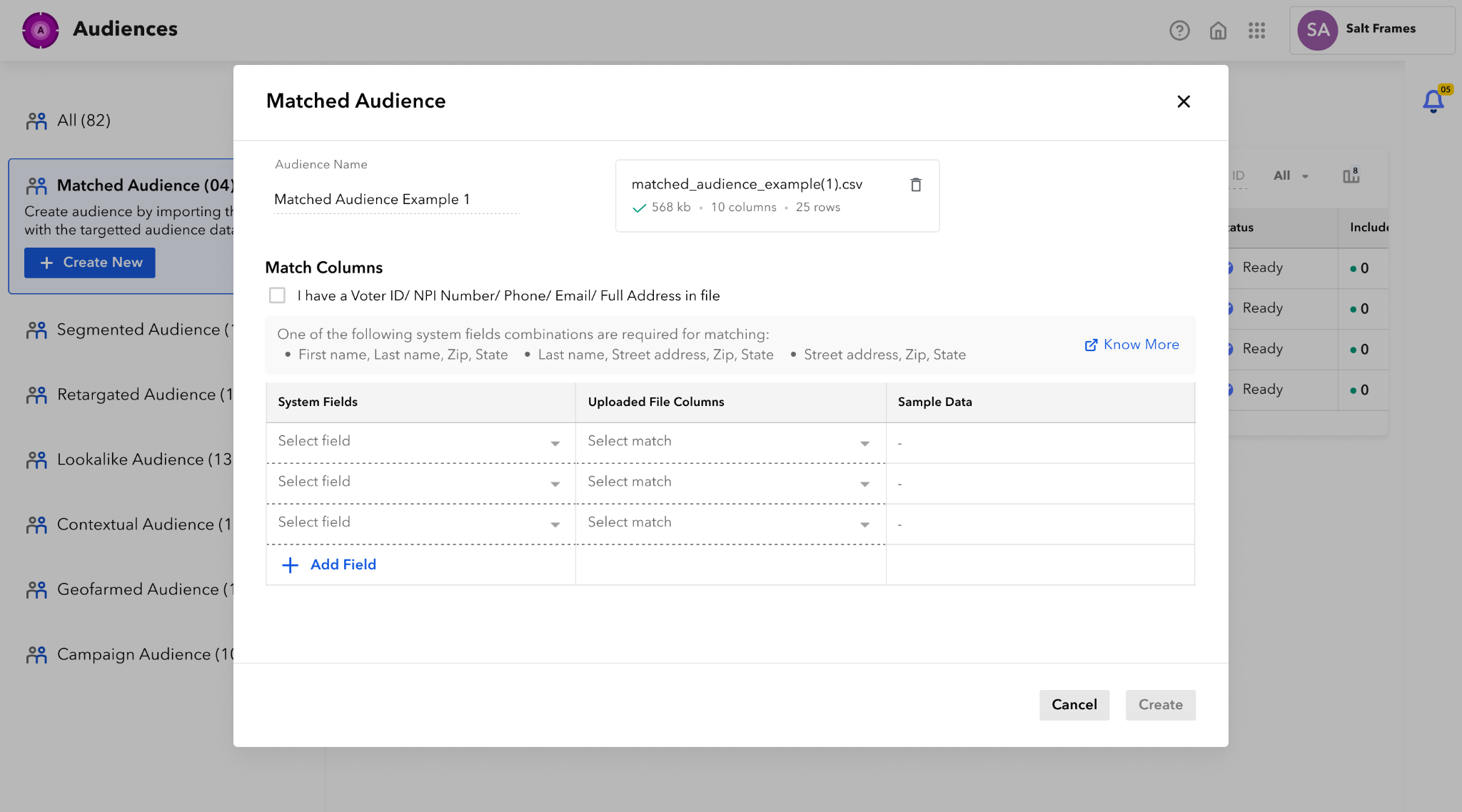
For more information about matching criteria, see IQM Matched Audience Help Center articles.
Installing for Additional Users
Any other user within your organization must also install the HubSpot app within their instance of IQM's Platform:
- Each user selects the HubSpot app from the Marketplace Apps
- User clicks the Request Admin button to send a request for the app
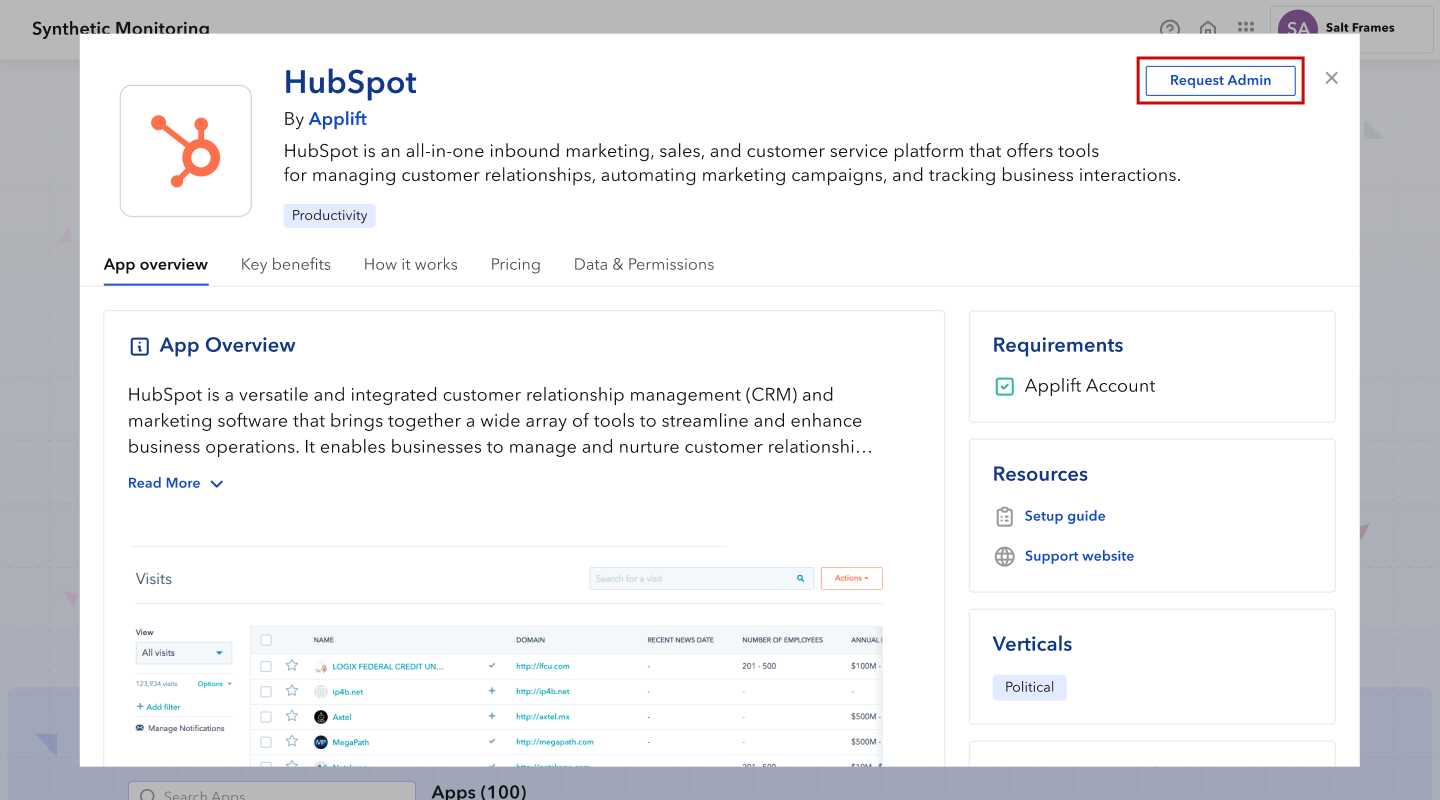
Users will be notified whenever an app is added into the platform ecosystem via the Intercom icon and the 9 dots icon in the header.
FAQs
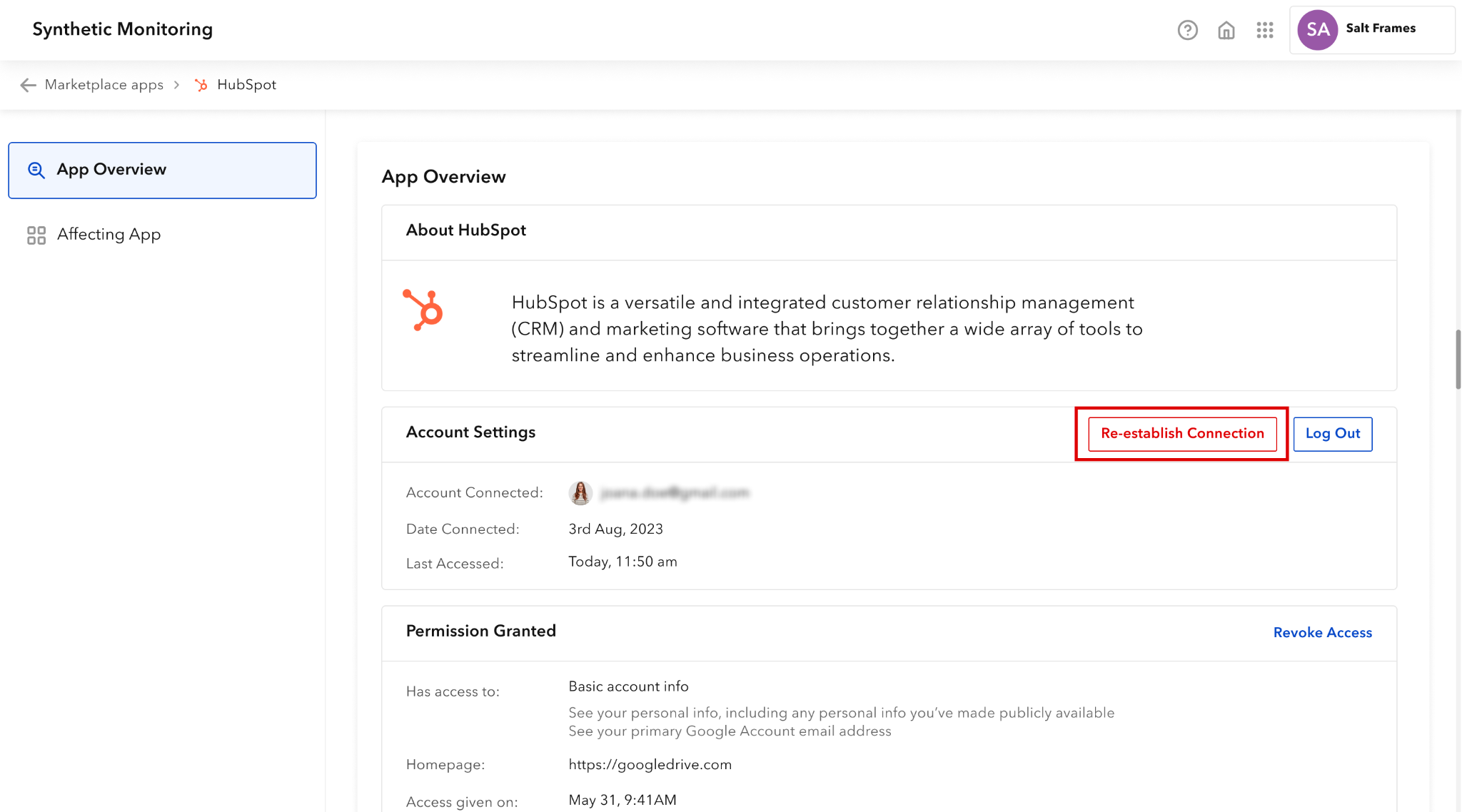
What do I do if I face connection issues?
If the connected app faces connection issues, you can re-establish the connection by clicking the Re-establish Connection button.
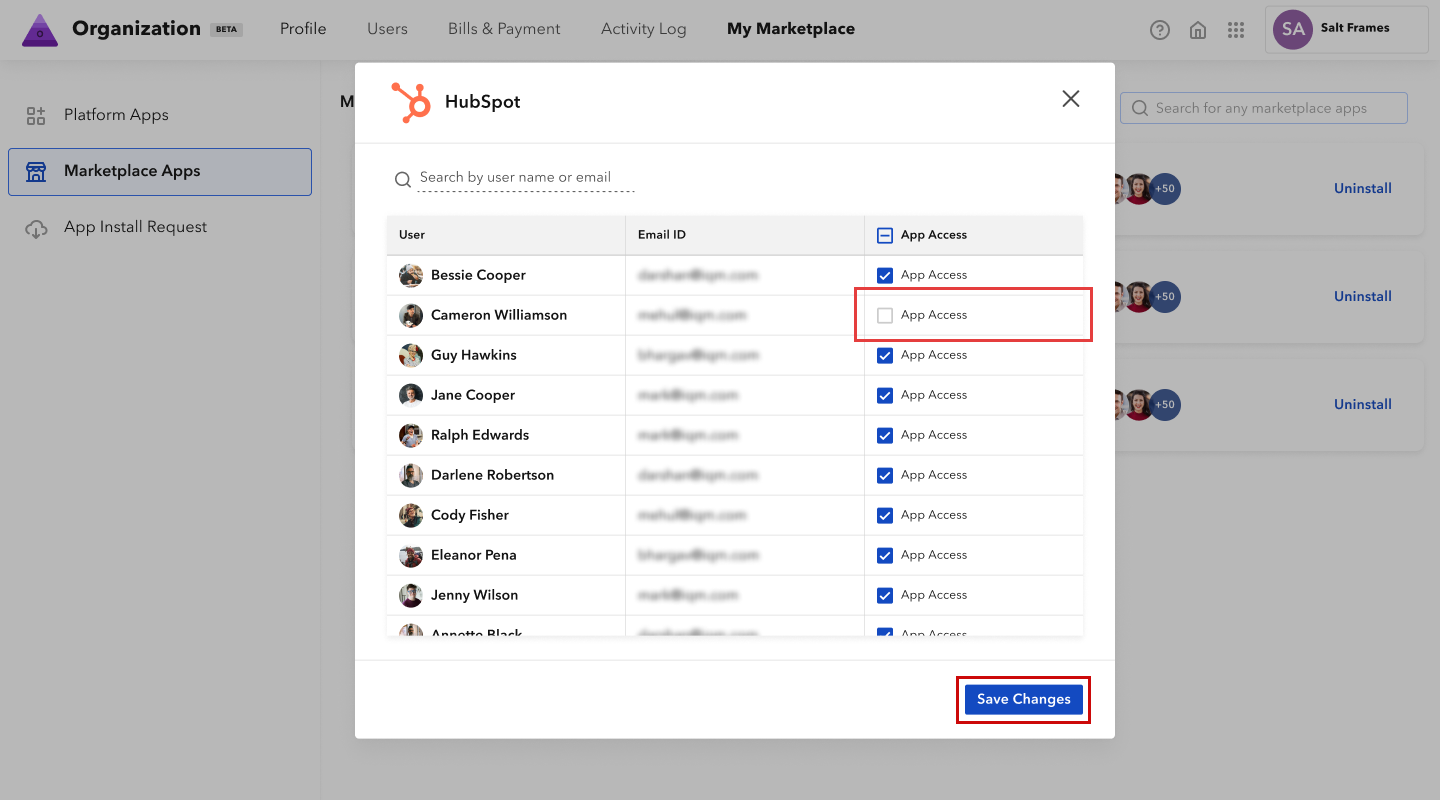
How do I revoke users from accessing HubSpot?
- Go to Marketplace Apps and click on the HubSpot app
- Click on the User Avatars to open the user list with app access
- De-select the user you would like to revoke access for
- Click Save Changes to complete the action
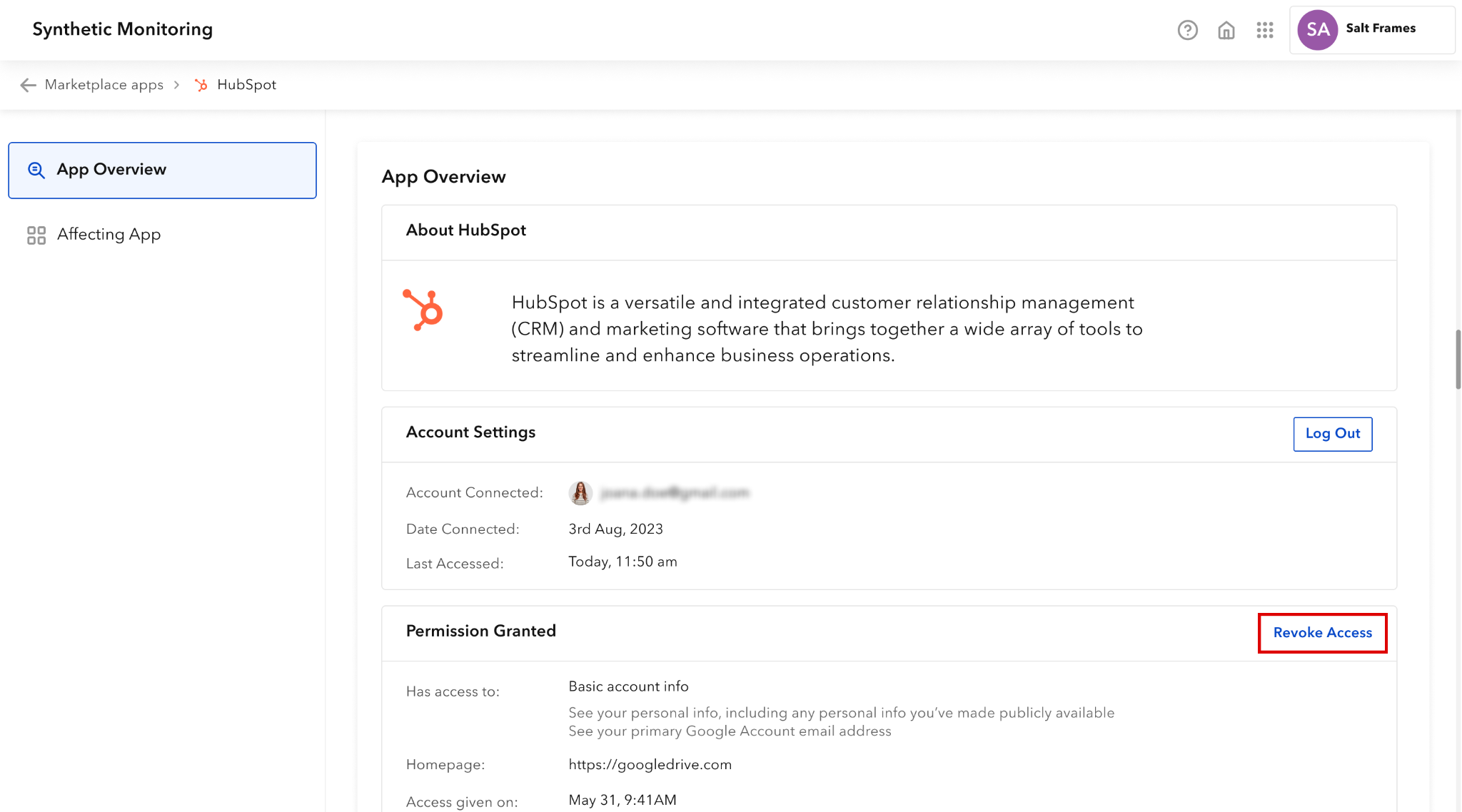
How do I revoke my access to HubSpot?
You can revoke access from two locations:
From the App Marketplace:
- Enter into the HubSpot App Overview Page
- Click on Revoke access
From "My Profile" page:
- Enter into My Profile in IQM's Platform
- Select HubSpot
- Click on Revoke access
Once revoked, users need to integrate the app again to use it.
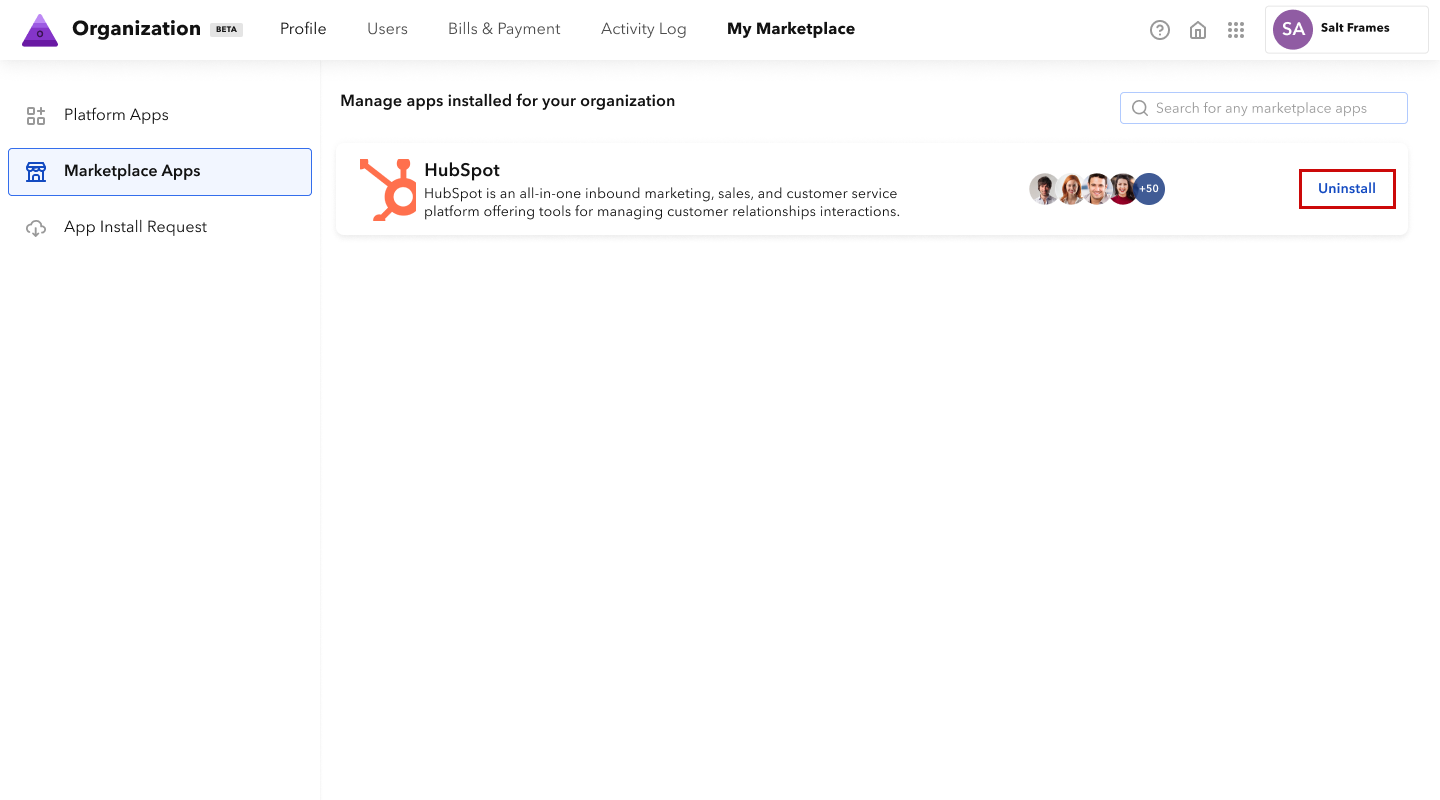
How do I uninstall the HubSpot app?
Click Uninstall in the Marketplace Apps to remove the application from the platform.
How do I switch to another HubSpot account?
To switch HubSpot accounts:
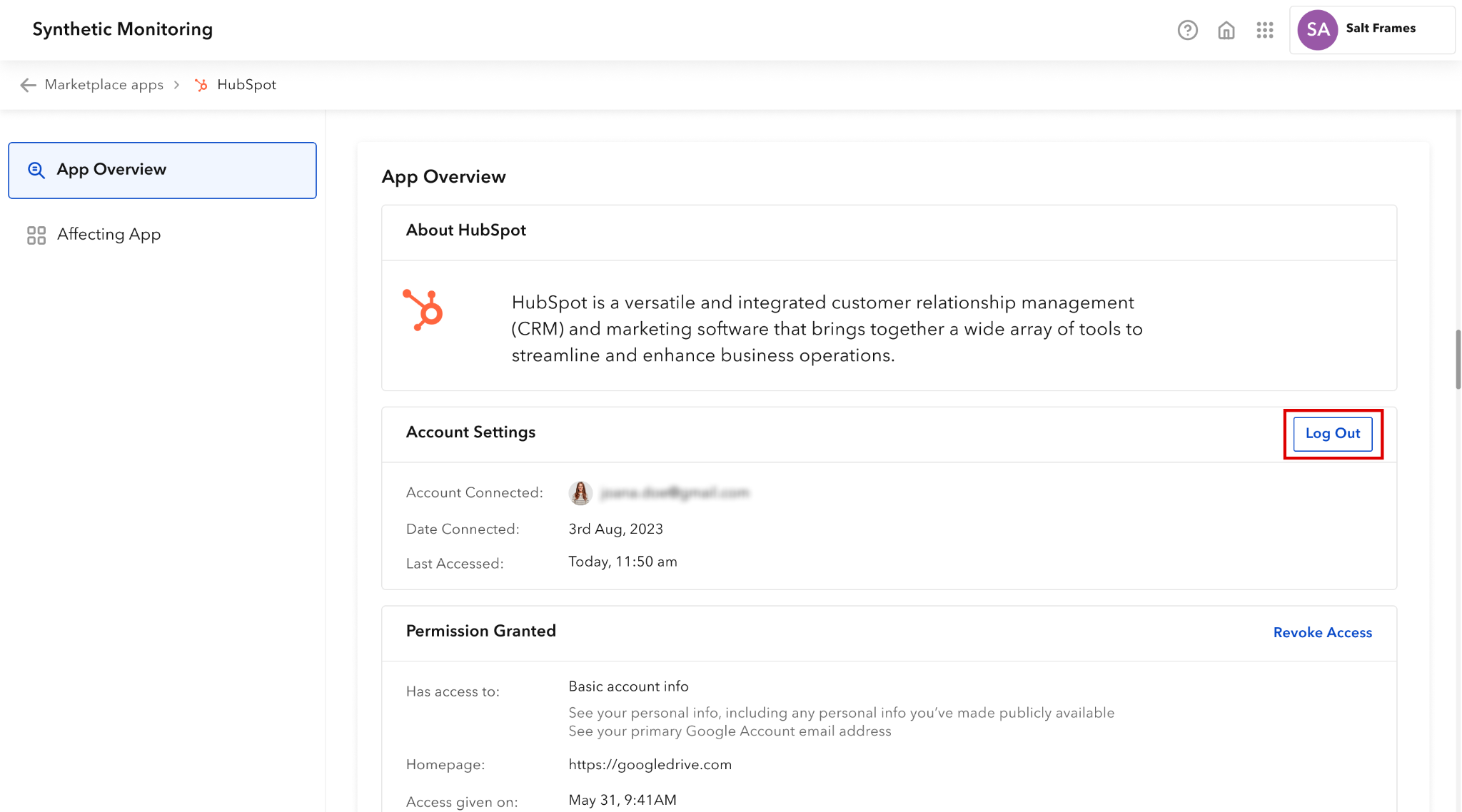
- First Log out from your current account in the Marketplace App Overview page
- Then integrate with another HubSpot account
Use Cases
- Retargeting Campaigns: Target existing customers from your HubSpot CRM
- Lookalike audiences: Build lookalike audiences based on your best customers
- Exclusion lists: Exclude existing customers from prospecting Campaigns
- Cross-sell Campaigns: Target specific customer segments for upsell opportunities
Additional Resources
- HubSpot - HubSpot CRM platform
- IQM Matched Audience - IQM help article on matching criteria
- IQM Partnerships - View all IQM partners