Sign up a new Customer
Sign up or invite a new Customer with this in-depth tutorial using IQM's API.
About IQM Customers
Customers can be invited or signed up to the IQM platform as Workspaces or Advertisers.
- Workspaces have app access and permissions that allow them manage multiple accounts within their agency on the same platform.
- Advertisers are individually managed and may have limited permissions or app access. Insertion orders and campaigns are created at the Advertiser level.
For an overview of IQM's organization hierarchy review the IQM platform overview.
More resources
Before you begin
To create a new Customer, the following are required:
- An account on the IQM platform
- See Getting started section to create an account and request a Client ID and Client Secret
- User must have login access to the Organization and access to the Customer app
Log in
POSTTo log in, the Authentication: Basic header is required. The Login API returns an OAuth-compliant response with an Organization Workspace ID (owId), a unique identifier for each Organization. This ID is used for any further API communications.
For further information see OAuth token.
| Headers | |
|---|---|
Authentication string required | Authentication bearer token See Sign up and authenticate |
| Request schema | |
|---|---|
grant_type string required | password for login OAuth Grant Types |
username string required | User account email |
password string required | User account password |
- JSON
curl -i --location 'https://api.iqm.com/api/v3/ua/oauth/token' \
--header 'accept: application/json, text/plain, */*' \
--header 'Authorization: Basic <Client ID/Client Secret>' \
--header 'Content-Type: application/x-www-form-urlencoded' \
--data-urlencode 'grant_type=password' \
--data-urlencode 'username=user@iqm.com' \
--data-urlencode 'password=<your password>'
{
   "success": true,
   "data":
   {
      "access_token": "106adb25-37b0-4cab-8381-d682fe7cc3c8",
      "refresh_token": "eac4c1f6-781e-4b04-baff-9c2e415d1f64",
      "scope": "read write",
      "token_type": "bearer",
      "expires_in": 35999,
      "owId": 200001
   }
}
More responses
{
   "success": false,
   "data":
   {
      "status": "On Hold",
      "reason": "The particular account is kept on hold due to missed payment dates for last 3 months.",
      "supportEmail": "support@iqm.com"
   },
   "errorObjects":
   [
      {
         "error": "User is not allowed to access provided customer",
         "reason": "User is not associated with any active organization."
      }
   ]
}
{
   "success": false,
   "errorObjects":
   [
      {
         "error": "User doesn't exist or user is not allowed to provided workspace."
      }
   ]
}
Authentication
Use the following header parameters for all requests after logging in:
| Headers | |
|---|---|
Authentication string required | Authentication bearer token See Sign up and authenticate |
X-IAA-OW-ID integer required | Organization Workspace ID Header |
Sign up a new Customer using the IQM API
This tutorial covers how to sign up or invite a new Customer using the IQM API.
A new Customer can be onboarded in two different ways:
- An existing Organization can invite a Customer to the platform.
- A new Customer can sign up and be approved by an existing Organization on the platform.
Once a Customer has accepted their invitation and the onboarding process is complete other Customer actions can be performed. This tutorial covers a few examples. The rest of the possible Customer actions are documented in the Workspace API.
The following diagram outlines the two courses of action covered in this tutorial:
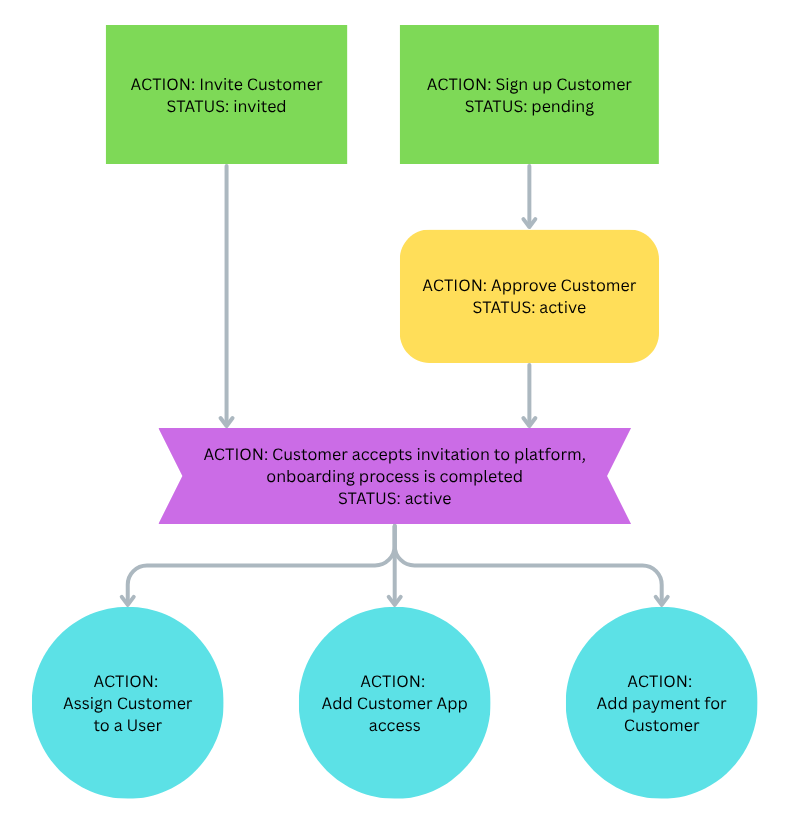
Invite or sign up a Customer
Invite a Customer
POSTAn Organization already a part of the IQM platform can initiate an invite to create a new Organization for their Customer.
Up to 10 invites are allowed per request.
Upon invite, Customer status is invited. Once the invitation is accepted, the Customer's status is active and the onboarding process is complete.
| Request schema | ||||||||||||||
|---|---|---|---|---|---|---|---|---|---|---|---|---|---|---|
email string | Customer email | |||||||||||||
name string | Customer name | |||||||||||||
password string | Customer password | |||||||||||||
onwerUserName string | Customer owner | |||||||||||||
verticalId integer | Vertical type ID | |||||||||||||
logoUrl string | Logo URL | |||||||||||||
customerOperationDetails object | Customer operations details (Workspace only) | |||||||||||||
| ||||||||||||||
customerTypeId integer | Customer type ID |
customerPaymentTypeId integer | Customer payment type ID |
countryId integer | Country ID |
adOpsAssigneeUserIds array of integers | User IDs assigned by the IQM AdOps Team |
sellerAssigneeUserIds array of integers | User IDs assigned by the client/seller team |
labelIds array of integers | Label ID |
Response properties
successfulEmails array of strings | Invites successfully sent to specified emails |
failedEmails array of strings | Invites failed to send to specified emails |
message string | Success message |
- JSON
- TypeScript
[
  {
    "email": "user1@iqm.com",
    "name": "ORG - 1",
    "password": "password@123",
    "ownerUserName": "User-1",
    "verticalId": 1,
    "logoUrl": "https://d3jme5si7t6llb.cloudfront.net/assets/202753/Pd7Xx26_1721991655891.png",
    "customerOperationDetails": {
      "customerTypeId": 2,
      "customerPaymentTypeId": 2,
      "countryId": 30100001,
      "adOpsAssigneeUserIds": [],
      "sellerAssigneeUserIds": [
        7184
      ],
      "labelIds": [
        7,
        8,
        9
      ]
    }
  }
]
{
"success": true,
"data": {
  "successfulEmails": [
    "user1.g@iqm.com"
  ],
  "failedEmails": [
    "user2.p@iqm.com"
  ],
  "message": "1 invitations sent successfully."
  }
}
See TypeScript prerequisites for usage.
import {
  getInstance
} from "prerequisites"

const axios = getInstance();

interface Responses {
  200: {
    headers: {
      [name: string]: unknown;
    };
    content: {
      "application/json": {
        success: boolean;
        data: {
          successfulEmails: string[];
          failedEmails: string[];
          message: string;
        }
      }
    };
  };
};

function sendInvitations(): Promise < Responses > {
  const options = {
    method: 'POST',
    url: 'https://api.iqm.com/api/v3/ua/customer/invite',
    requestBody: {
      content: {
        "application/json": [
          {
            id?: `number`,
            invitedUserOWId?: `number`,
            email?: `string`,
            password?: `string`,
            name?: `string`,
            ownerUserName?: `string`,
            owId?: `number`,
            uowId?: `number`,
            modifiedByUOWId?: `number`,
            status?: `number`,
            expiresAt?: `number`,
            modifiedAt?: `string`,
            invitationUserType?: `string`,
            verticalId?: `number`,
            logoUrl?: `string`,
            serviceType?: `number`,
            customerOperationDetails?: {
              customerTypeId?: `number`,
              customerPaymentTypeId?: `number`,
              countryId?: `number`,
              createdByUowId?: `number`,
              modifiedByUowId?: `number`,
              adOpsAssigneeUserIds?: `array of numbers`,
              sellerAssigneeUserIds?: `array of numbers`,
              labelIds?: `array of numbers`,
            }
          }
        ]
      }
    }
  };

  return axios.request(options).then(({ data }: { data: Responses }) => data);
}
Sign up a Customer
POSTA Customer Organization can register itself using the signup API. On signup, the Customer status is pending. This triggers the parent Organization to approve the new Customer signup (see next section).
Once approved, an invitation email is sent to complete the registration process, and the Customer status updates to active.
| Request schema | |
|---|---|
email string | Customer email |
organizationName string | Customer Organization name |
userName string | Customer user name |
industry integer | Industry ID |
companySize integer | Company size type ID |
mediaBudget integer | Media budget ID |
budgetSpent integer | Budget spent |
Response properties
data string | Success message |
- JSON
- TypeScript
{
    "email": "email@domain.com",
    "organizationName": "Organisation Name",
    "userName": "User Name",
    "industry": 1,
    "companySize": 2,
    "mediaBudget": 3,
    "budgetSpent": 2000
}
{
    "success": true,
    "data": "Customer sign up requested successfully."
}
See TypeScript prerequisites for usage.
import {
  getInstance
} from "prerequisites"

const axios = getInstance();

interface Responses {
  200: {
    headers: {
      [name: string]: unknown;
    };
    content: {
      "application/json": {
        success: boolean;
        data: string;
      };
    };
  };
}

function Customersignup(): Promise<Responses> {
  const options = {
    method: 'POST',
    url: 'https://api.iqm.com/api/v3/ua/customer/signup',
    requestBody: {
      content: {
        "application/json": {
          email: `string`,
          organizationName: `string`,
          userName: `string`,
          industry: `number`,
          companySize: `number`,
          mediaBudget: `number`,
          budgetSpent: `number`,
        }
      }
    }
  };

  return axios.request(options).then(({ data }: { data: Responses }) => data);
}
Approve a Customer
PATCHApprove a Customer and add app access.
| Request schema | |
|---|---|
owId integer | Organization Workspace ID |
appIds string | Comma separated Application IDs to add or revoke Customer access to |
Response properties
data string | Success message |
- JSON
- TypeScript
{
    "owId": 134562,
    "appIds": "2,5,6,7,9,10,11"
}
{
  "success": true,
  "data": "Customer approved successfully."
}
More responses
{
  "success": false,
  "errorObjects": [
    {
      "error": "User is not allowed to access provided customer"
    }
  ]
}
See TypeScript prerequisites for usage.
import {
  getInstance
} from "prerequisites"

const axios = getInstance();

interface Responses {
  200: {
    headers: {
      [name: string]: unknown;
    };
    content: {
      "application/json": {
        success: boolean;
        data: string;
      };
    };
  };
}

function Approvecustomer(): Promise<Responses> {
  const options = {
    method: 'PATCH',
    url: 'https://api.iqm.com/api/v3/ua/customer/approve',
    requestBody: {
      content: {
        "application/json": {
          owIds: `number`,
          appIds: `string`,
        }
      }
    }
  };

  return axios.request(options).then(({ data }: { data: Responses }) => data);
}
More Customer actions
Assign Customer to user
POSTAssign a Customer to an existing user.
| Request schema | |
|---|---|
owIds string | Comma separated OW IDs to assign to user |
uowIds string | Comma separated user IDs to assign Customers to |
Response properties
data string | Success message |
- JSON
- TypeScript
{
    "owIds": "170,58,167,900",
    "uowIds": "166"
}
{
    "success": true,
    "data": "Added Customer association to User successfully."
}
See TypeScript prerequisites for usage.
import {
  getInstance
} from "prerequisites"

const axios = getInstance();

interface Responses {
  200: {
    headers: {
      [name: string]: unknown;
    };
    content: {
      "application/json": {
        success: boolean;
        errorObjects: {
          error: string;
        }[];
        data: {
          successfulCustomerIds: number[];
        };
      };
    };
  };
}

function AssignCustomerstoUser(): Promise<Responses> {
  const options = {
    method: 'POST',
    url: 'https://api.iqm.com/api/v3/ua/user/customer/assign',
    requestBody: {
      content: {
        "application/json": {
          owIds: `string`,
          uowIds: `string`,
        }
      }
    }
  };

  return axios.request(options).then(({ data }: { data: Responses }) => data);
}
Add Customer app access
POSTAdd Customer access to specified apps.
| Request schema | |
|---|---|
owId integer | Organization Workspace ID |
appIdsstring | Comma separated Application IDs to add or revoke Customer access to |
accessLevel string | Gives Customer full or limited access to added applications |
Response properties
data string | Success message |
- JSON
- TypeScript
{
    "owId": 2,
    "appIds": "1,2",
    "accessLevel": "Full"
}
{
    "success": true,
    "data": "Application access added successfully."
}
See TypeScript prerequisites for usage.
import {
  getInstance
} from "prerequisites"

const axios = getInstance();

interface Responses {
  200: {
    headers: {
      [name: string]: unknown;
    };
    content: {
      "application/json": {
        success: boolean;
        data: string;
      };
    };
  };
}

function AddAppaccessforCustomer(): Promise<Responses> {
  const options = {
    method: 'POST',
    url: 'https://api.iqm.com/api/v3/ua/customer/application/add',
    requestBody: {
      content: {
        "application/json": {
          owId: `number`,
          appIds: `string`,
          accessLevel: `string`
        }
      }
    }
  };

  return axios.request(options).then(({ data }: { data: Responses }) => data);
}
Add payment for Customer
POST| Request schema | |
|---|---|
owId integer | Organization Workspace ID |
paymentAmount integer | Payment amount |
paymentDate string | Payment date in YYYY-MM-DD format |
paymentMode integer | Payment mode type ID |
transactionId integer | Transaction ID |
paymentProof string optional | Proof of payment image (jpeg/png) |
paymentType integer | Payment type ID |
invoiceId integer | Invoice ID (provide only if paymentType is Against Invoice) |
Response properties
success boolean | Indicates payments successfully added: true |
data string | Success message |
- JSON
- TypeScript
{
    "owId": 123654,
    "paymentAmount": 5000,
    "paymentDate": "2025-12-01",
    "paymentMode": 1,
    "transactionId": 10,
    "paymentProof": "image.png",
    "paymentType": 2,
    "invoiceId": 34
}
{
    "success": true,
    "data": "Payment added Successfully."
}
See TypeScript prerequisites for usage.
import {
  getInstance
} from "prerequisites"

const axios = getInstance();

interface Responses {
  200: {
    headers: {
      [name: string]: unknown;
    };
    content: {
      "application/json": {
        success: boolean;
        data: string;
      };
    };
  };
}

function AddPaymentforcustomer(): Promise<Responses> {
  const options = {
    method: 'POST',
    url: 'https://api.iqm.com/api/v3/fa/customer/payment/add',
    requestBody?: {
      content: {
        "application/x-www-form-urlencoded": {
          owId: `number`,
          paymentAmount: `number`,
          paymentDate: `string`,
          paymentMode: `number`,
          transactionId: `string`,
          paymentProof: `string`,
          paymentType: `number`,
          invoiceId: `number`,
        }
      }
    }
  };

  return axios.request(options).then(({ data }: { data: Responses }) => data);
}